Scanner App - Scan PDF & Docs
- 4.5
- Rating
- 5.00M
- Installs
- Free
- Price
 Analysis by App-foxy
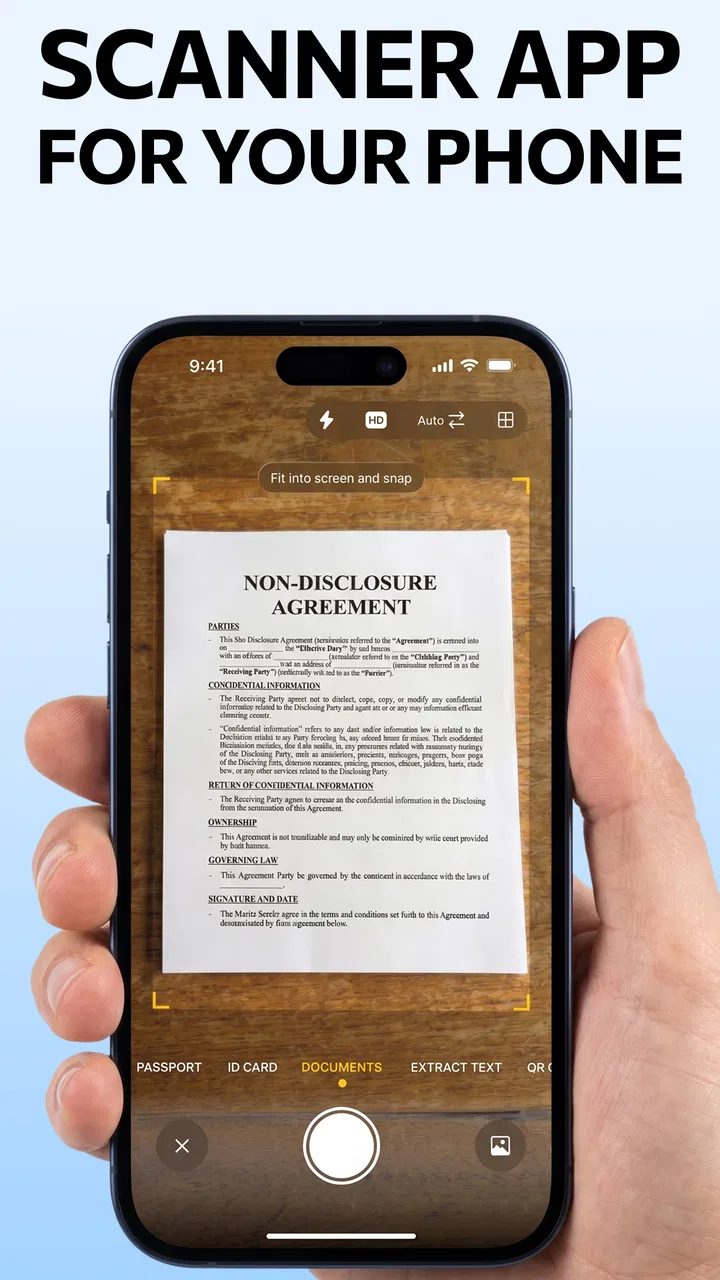
I started using Scanner App - Scan PDF & Docs because I wanted a simple way to turn loose pages into digital files without reaching for a desktop scanner. It is a free tools app from TapSuite, and its main job is straightforward: use the phone camera to capture documents and save them as PDFs. That focus is its biggest strength, but it also means the experience depends heavily on how well your phone, surroundings, and connection cooperate.
After spending time with it, I see this as a practical choice for students, renters, freelancers, parents, and anyone who occasionally needs a clean digital copy of a paper. It is not trying to replace a full office document system. Instead, it fits the moments when a page appears unexpectedly and your phone is the device already in your hand. The app has a 4.5 average from around 262 thousand ratings, with more than 5 million installs, so it has clearly found a sizable audience.
What the scanner feels like in everyday use
The first thing I noticed is how naturally the app fits a mobile workflow. You open it when a document needs capturing, point the camera at the page, and work through the scan rather than setting up a separate device. That makes it useful for receipts, signed forms, school handouts, handwritten notes, and pages borrowed from a book. The value is not just creating a picture; it is having a document-shaped result that is easier to keep with other files and send when needed.
You May Also Like

 Blood Strike: 2.5 Anniversary
Blood Strike’s Loadouts Turn Every Drop Into a Tactical Gamble
A close look at Blood Strike’s custom loadouts: how fast access to signature weapons reshapes its battle royale rhythm, rewards preparation, and narrows the gap between fights.

 Pandora - Music & Podcasts
Pandora’s Music Is Easy to Start, but Harder to Recover
Pandora’s strength is its low-effort path from a seed to a station. Its weak spot is how much confidence it asks you to place in connection, setup, and quiet recovery.

 8 Ball Pool
 Is Built on Rivalries, Rematches, and Routine
A close look at the rivalries, rematches, shared routines, and unanswered safety questions that turn a quick pool match into a persistent mobile community.

 Samsung Music
’s Quiet Strength Is Playing What You Already Own
Its reach comes less from spectacle than from dependable access to a personal library. That simplicity is both the app’s strongest retention engine and its ceiling.

 AccuWeather: Weather Radar
AccuWeather Review: A Quick, Clear Forecast for Everyday Decisions
For everyday plans, the best forecast is the one you can understand quickly. AccuWeather makes rain timing, radar, and local conditions easy to act on, with a few trade-offs.

 Hill Climb Racing
Why Hill Climb Racing Still Turns Crashes Into One More Run
A tiny car, a bumpy hill and one more upgrade: Hill Climb Racing keeps resurfacing because its simple chaos makes every near-miss feel personal.
More From Our News Desk



In an everyday situation, imagine receiving a paper form at a school office and being asked to return a copy later. I could photograph it casually, but that often leaves a tilted page, distracting background, or uneven lighting. A dedicated scanner app encourages me to frame the sheet carefully and produce a more presentable PDF. That small difference matters when the recipient expects a document rather than a camera roll image.
The app is also approachable for people who do not scan documents often. I would recommend it to a family member who wants fewer steps than a desktop scanner provides. The interface does not need to become part of a complicated filing system to be useful. Capture the page, check the result, and continue with the task. For occasional paperwork, that is a sensible balance.
At the same time, I would not choose it as the only tool for a business that processes large batches every day. A phone camera is convenient, but it still requires attention to framing, focus, shadows, and page order. If your work involves long contracts or repeated archiving, a dedicated document scanner or a more specialized office platform may save time. This app is strongest when convenience matters more than high-volume automation.
Why connectivity changes the experience
The scanning action begins on the phone, but the complete experience is not always equally comfortable in every network situation. Connectivity becomes important when you need to move the finished document beyond the device, check something related to the app, or continue a sharing workflow. A scan can be useful immediately, yet its practical destination is often an email, cloud folder, messaging conversation, or online form.
That distinction is worth keeping in mind. I would not assume that every part of the workflow behaves identically without a connection, because the app’s central purpose and the services around it are separate concerns. If I am on a train, in a basement office, or in a crowded venue with unreliable mobile data, I treat the scan as a document I should inspect and preserve first. I do not build an urgent submission around an uncertain connection.
This is especially relevant when a deadline is involved. If someone asks for a PDF immediately, I prefer to capture the page before trying to send it. That gives me a recoverable copy on the phone while I wait for a stronger signal. It is a small habit, but it prevents the common mistake of assuming that a failed upload means the document itself has disappeared.
The app’s free entry point also makes it easy to try in different places before deciding whether it suits your routine. It is listed for Everyone, so the intended audience is broad. The current version is 2.3.6, and it supports devices running Android 8.0 or later. Those details make it accessible to many Android users, though people with older phones should check compatibility before planning around it.
Mobile situations where it earns its place
My favorite use case is the short, unplanned scan. A landlord needs a copy of an identification document, a teacher hands out a worksheet, or a repair shop gives you a receipt that you want to keep. In those moments, the phone is already nearby, and opening a scanner app is less disruptive than finding a computer. The app turns an awkward paper task into something I can handle before leaving the room.
It is also useful when space is limited. In a small apartment, a shared office, or a classroom, there may be no convenient flatbed scanner. A phone-based tool avoids cables, a separate machine, and the need to wait for someone else’s equipment. I can stand near a table, align the page, and finish without taking over a workstation.
There is a trade-off with mobile capture, however. Phones vary widely in camera quality, screen size, and processing speed. A newer device may make framing and checking easier, while an older model can make the process feel slower or less forgiving. The app cannot remove every limitation caused by a dim room, a glossy page, or a camera lens covered with fingerprints.
For better results, I place the document on a flat surface with enough contrast around its edges. I avoid holding it in midair unless I have no alternative, because slight movement makes alignment harder. I also check the entire page before moving on, especially when the document contains small print or faint signatures. This is more useful than simply assuming the first capture is acceptable.
Recovering from imperfect scans and interruptions
A good scanner workflow is not only about the successful capture. It is also about what happens when a page is crooked, a corner is hidden, or the connection fails while I am trying to finish the job. My practical rule is to review each page before treating the scan as complete. A document that looks fine as a thumbnail may reveal a clipped line or unreadable section when viewed more closely.
If the page is poor, I rescan it immediately rather than hoping the recipient will understand. This is particularly important for forms, account details, and signatures, where one missing character can make the whole file unusable. Retaking a page at the source is usually faster than explaining the problem later and asking someone to send it again.
Connectivity failures require a different response. When sharing does not work, I separate the capture problem from the delivery problem. First, I make sure the document exists in the app’s workflow and that the pages are in the right order. Then I retry the online action when the signal improves. If the task is urgent, I use another available route on the phone rather than repeatedly tapping the same failed action.
This approach also helps when the app is interrupted by a call, a low-battery warning, or another mobile task. I avoid switching away before checking whether the current scan has been retained. For multi-page documents, I pause after important pages and verify progress. That may sound cautious, but it is a worthwhile habit whenever the original papers are not easily available again.
One non-obvious advantage of reviewing as you go is that it keeps page order under control. When scanning several sheets, I place them in a clear sequence before starting and check the resulting document after every few pages. That prevents the common mobile mistake of creating a technically complete PDF that is confusing to read because pages were captured out of order.
Using it without wasting data
Document images can become large, particularly when a page contains fine print or when several pages are combined. I try to avoid scanning the same sheet repeatedly, because careless retakes consume storage and may create confusion about which file is final. A quick check of orientation, edges, and legibility before confirming each page saves both time and data later.
If I am working on mobile data, I prefer to capture and review first, then handle sharing when I have a stable connection. This is not because every action necessarily requires the network; it is because sending a document is the part most likely to involve another service or a repeated attempt. Waiting for reliable connectivity is more sensible than triggering several failed transfers.
I also keep the purpose of the scan in mind. A page meant for personal reference may not need the same level of visual care as a form being submitted to an organization. For important documents, I favor a clean, readable capture even if it takes an extra moment. For a temporary note, I can work faster. This judgment prevents the app from becoming either unnecessarily slow or too careless.
Privacy is another reason to be deliberate. The camera may capture surrounding items if I frame the page loosely, so I position the phone to exclude unrelated papers and screens. I do not leave sensitive documents sitting open while I search for a signal or decide how to share them. The app makes scanning convenient, but convenience should not replace basic document handling discipline.
The free price is a strong reason to try it, although the app also offers in-app purchases ranging from $3.99 to $59.99 per item. That makes it important to understand your own usage before paying for anything. Someone who scans a few pages a month may find the free experience sufficient, while a frequent user may consider an upgrade only after identifying a specific limitation that affects their routine. I would not spend simply because a paid option exists.
How it compares with familiar alternatives
The usual alternative is the phone’s standard camera. That works for quick visual records, but it is less focused on producing a document that looks organized and ready to use. A camera photo often preserves the table, floor, or surrounding clutter. A scanner app gives the task a clearer purpose and encourages a more suitable capture process.
Another alternative is a desktop scanner. For a stack of pages, high consistency, or professional archiving, dedicated hardware remains the better choice. It offers a stable surface and a repeatable process that a handheld phone cannot fully match. The advantage of this app is not superior hardware; it is availability. When the scanner is elsewhere, unavailable, or too inconvenient to set up, the phone wins.
Cloud-based document tools can be better when a team needs shared folders, permissions, and an established filing structure. I would choose one of those for ongoing collaboration rather than treating a mobile scanner as a complete records system. This app makes sense as the capture point in a personal workflow, especially when the final destination is simple and the number of documents is manageable.
It can also complement, rather than replace, other tools. I might use it to create a clean PDF and then continue in the service required by a school, employer, bank, or government website. The important question is not whether it does everything; it is whether it removes the most annoying step between paper and a usable digital document. For many occasional tasks, it does.
Who should install it, and who should pass
I think it is a good fit for people who regularly encounter one to several pages at a time and want a portable solution. Students can use it for notes and handouts, freelancers for receipts and signed paperwork, and households for keeping records that would otherwise be lost in a drawer. Its broad age rating and free starting point also make it approachable for casual users who do not want to learn office software.
I would be more cautious if your work depends on guaranteed delivery during poor connectivity. The app may help create the document, but the wider sharing process can still be affected by signal quality and the destination service. I would also look elsewhere if you need advanced batch handling, a formal archive, or a workflow designed around many users and strict document controls.
People who dislike checking camera alignment may find the experience frustrating. The app simplifies scanning, but it cannot make a badly lit, folded, or partially covered page readable. If your documents are usually fragile, oversized, glossy, or filled with extremely small text, a flatbed scanner may produce more dependable results with less retaking.
For everyone else, the decision is fairly simple: try the free version with the kinds of papers you actually handle. Do not judge it only on a perfect sample page. Test a receipt, a multi-page form, and a scan in the place where you normally work. That will tell you more than a quick demonstration because lighting, phone comfort, and connectivity habits shape the real experience.
My connectivity verdict
TapSuite has made a useful mobile tool for the gap between paper and digital files. I like it most when I need a document quickly, have no scanner nearby, and want something more presentable than an ordinary camera photo. The free model lowers the barrier to trying it, while the current version and Android 8.0 support keep it relevant for a wide range of devices.
My main advice is to treat connectivity as part of the workflow rather than an afterthought. Capture first, inspect every page, keep the document organized, and share it when the connection is dependable. That method reduces repeated attempts and protects you from confusing a delivery failure with a scanning failure.
My recommendation is clear: choose this app for convenient, occasional document capture, not as a substitute for a high-volume office scanner or a complete document-management platform. If that matches your needs, it is an easy tool to keep installed. If your priority is batch processing, strict collaboration, or dependable submission from difficult network conditions, a more specialized alternative will serve you better.
FAQs for Scanner App - Scan PDF & Docs
01What is Scanner App - Scan PDF & Docs used for?
Scanner App - Scan PDF & Docs turns your smartphone or tablet into a portable document scanner. You can capture receipts, contracts, notes, IDs, forms, and other paper documents with the camera, improve the image quality, and save the result as a digital file. It is useful for students, remote workers, small businesses, and anyone who needs quick scans without using a traditional scanner.
02Does Scanner App - Scan PDF & Docs create PDF files?
Yes, the app is designed to convert photographed documents into digital scans that can generally be saved or shared as PDF files. You can usually scan multiple pages and combine them into one document, which is convenient for contracts, assignments, invoices, and reports. Before downloading, check the current app description because available export formats and page limits may vary by version or subscription plan.
03Is Scanner App - Scan PDF & Docs free to use?
The app may offer free scanning features, but some tools can be restricted behind in-app purchases or a premium subscription. Commonly limited features may include unlimited document pages, advanced image enhancement, OCR text recognition, cloud storage, watermark removal, or expanded sharing options. Review the pricing screen carefully before confirming a trial, since subscriptions can renew automatically unless canceled through your device settings.
04Can I edit, enhance, and share scanned documents with the app?
Scanner App - Scan PDF & Docs typically provides tools for cropping page edges, rotating documents, adjusting brightness or contrast, and improving readability. After scanning, documents can usually be renamed, organized, saved locally, or shared through email, messaging apps, and cloud services supported by your phone. Results depend on lighting and camera quality, so flat pages and good contrast produce the clearest scans.
05Are documents scanned with the app private and secure?
Privacy depends on how the application processes and stores your scans. Documents may remain on your device, but features such as synchronization, OCR, backups, analytics, or cloud sharing could involve sending data to external servers. Before scanning sensitive material such as passports, financial records, or medical documents, read the app’s privacy policy, review requested permissions, and avoid sharing files through services you do not trust.
Pros
- Quickly turns paper documents into clear PDF or image scans.
- Automatic edge detection helps crop pages accurately.
- Supports multi-page documents in a single scan.
- Useful text recognition can make scanned content searchable.
- Easy sharing through email
- cloud storage
- and messaging apps.
Cons
- Some advanced features may require a paid subscription.
- OCR results can be inaccurate with handwriting or poor lighting.
- Large scan batches may use considerable phone storage.
- Cloud syncing may depend on account access and internet quality.
- Ads or upgrade prompts can interrupt the scanning workflow.

Scanner App - Scan PDF & Docs
Gallery